

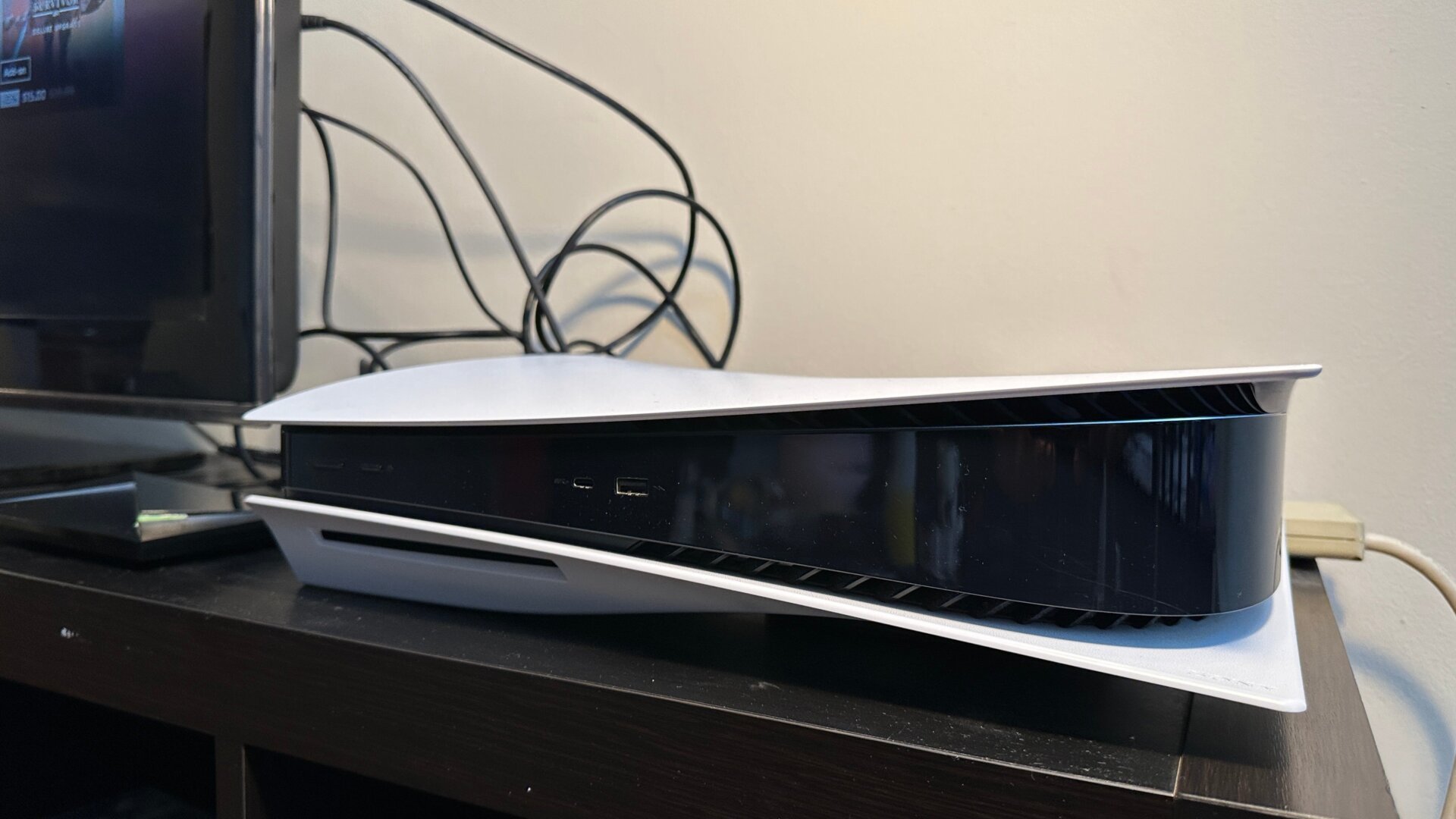
Unveiling the Hidden Potential of Your PlayStation 5 and PlayStation 5 Pro
Immersive Gaming with Discord Integration
Connect your PlayStation 5 to your Discord account and seamlessly chat with your Discord friends while immersing yourself in online multiplayer sessions. To activate this feature, log into your PlayStation account, navigate to Linked Services, select Discord, and sign in with your Discord credentials. When you’re ready to join a voice chat on a separate device, swipe up on the bottom bar and choose the option to Join on PlayStation. Discord notifications will appear on your PlayStation, allowing you to manage your chats and leave them directly from the console.
Unlocking Enhanced Graphics and Performance on PS5 Pro
The PlayStation 5 Pro boasts a more powerful GPU than the regular PS5, enabling you to unlock enhanced visual settings and performance in supported games.
-
PS5 Pro Enhanced Games: Check the PlayStation Store for a dedicated section that showcases games optimized for the PS5 Pro. These games often offer additional graphics options, such as higher frame rates, improved resolutions, and ray tracing.
-
Enable PS4 Enhancements: Even non-PS5 Pro Enhanced titles can benefit from the PS5 Pro’s upgraded hardware. Go to Settings > Screen and Video > Enhance Image Quality for PS4 Games to activate this feature. This may result in improved visual clarity and performance in certain games.
-
Force 8K Resolution (Experimental): While 8K televisions are still a rarity, the PS5 Pro supports 8K output for a limited number of games, including Grand Turismo 7, F1 24, and No Man’s Sky. To enable this feature, navigate to Settings > Screen and Video > Allow 8K Output.
Stream Your PS5 Gameplay Remotely
-
PlayStation Remote Play on Mobile Devices: Download the PS Remote Play app from the Google Play Store or Apple App Store and link your PlayStation 5. You can then stream your PS5 gameplay to your mobile device over Wi-Fi or a mobile network.
-
PlayStation Portal: This dedicated device allows you to remotely access your PS5 and play games with a PC or Mac, providing a portable PS5 experience.
Capture and Share Your Gaming Moments
-
Share Content via the PlayStation App: Upload captured gameplay clips and screenshots to the PlayStation app on your smartphone or tablet. To enable this, navigate to the Game Library section of the app, select Captures, and hit Enable.
-
Edit and Upload with Share Factory: Sony’s Share Factory app provides a suite of tools for editing and enhancing your captured content. Create videos, add graphics, and share them directly to YouTube or save them to your PlayStation app for further editing and sharing.
-
Automatic Gameplay Recording: The PS5 automatically captures the last 30 minutes of gameplay. To save a specific moment, simply press the Share button and select Save Recent Gameplay.
Seamless Music Playback with Spotify and Apple Music
Download the Spotify or Apple Music apps on your PS5 and enjoy your favorite tunes while gaming. Access them quickly from the Media tab on the PS5 home screen or minimize them into the control center to continue listening while playing.
Game Help and Spoiler Warnings
-
PlayStation Game Help: PlayStation Plus members have access to in-game video walkthroughs for select titles, providing guidance on boss battles, puzzles, and more.
-
Spoiler Warnings: Enable Spoiler Warnings in Settings > Saved Data > Game/App Settings to receive notifications when you’re about to see potentially spoiler-filled content shared by friends or other players.
Voice Commands with "Hey PlayStation"
Simplify navigating your PS5 with voice commands. Go to Settings > Voice Command (Preview) and enable the feature. You can now use phrases like "Hey PlayStation, open Spider-Man" to launch games, control playback, and more.
Customize Your PS5 with Interchangeable Side Panels
The side panels on both the original PS5 and the PS5 slim are removable and replaceable. Experiment with different colors and designs to personalize your console. Note that PS5 Pro side panels are not compatible with PS5 slim models.
Easily Clean Your PS5
Remove the side panels to access the dust-catching areas on your PS5. Vacuum up the accumulated dust from the top to keep your console running smoothly.
Immersive 3D Audio
Elevate your gaming experience with 3D Audio, which creates a more realistic and immersive soundscape. Enable it in Settings > Sound > 3D Audio for your headphones or TV speakers.
Organize Your Game Library
Keep your games organized and easily accessible by creating game lists. Navigate to Game Library > Your Collection and select the folder icon with a plus symbol. Select the games you want to include in the list, name it, and sort it by various criteria.
Game Sharing
Share your PlayStation Plus games and other titles with other users on your PS5. Go to Settings > Users and Accounts > Other > Console Sharing and Offline Play to enable this feature.
Customize Your Control Center
Tailor the control center (accessed by pressing the PlayStation button) to your preferences. In the control center, press the options button to change which icons are displayed and rearrange them. Hide unwanted icons and prioritize accessibility options or entertainment features like music playback.
Reassign Controls and Enhance Haptics
Reassign buttons on your DualSense controller to suit your playing style. Go to Settings > Accessories > Controller > Accessibility > Custom Button Assignments. You can also adjust the intensity of vibration and haptic feedback on the controller for a more personalized gaming experience.
Game Presets and Accessibility
Set default game preferences for subtitles, difficulty levels, and more in Settings > Accessories > Game Presets. This ensures that every new game you launch adheres to your preferred settings. In the same section, you can also enable accessibility options like inverted colors, text adjustments, and screen reader functionality.

